

Quick Reference - Start and stop call recording:
Available via: SDK | UI Kits
Overview
This section guides you through implementing call recording for voice and video calls. Once you have decided to implement Ringing or Call Session and followed the steps to implement them, a few additional listeners and methods will help you quickly implement call recording in your app. You need to make changes in theCometChatCalls.OngoingCallListener constructor and add the required listeners for recording. Please make sure your callSettings is configured accordingly for Ringing or Call Session.
A basic example of how to make changes to implement recording:
- JavaScript
- TypeScript
Settings for Call Recording
TheCallSettings class allows you to customise the overall calling experience. The properties for the call/conference can be set using the CallSettingsBuilder class. This will eventually give you an object of the CallSettings class which you can pass to the CometChatCalls.Component to start the call.
The options available for recording of calls are:
| Setting | Description |
|---|---|
showRecordingButton(showRecordingButton: boolean) | If set to true it displays the Recording button in the button Layout. if set to false it hides the Recording button in the button Layout. Default value = false |
startRecordingOnCallStart(startRecordingOnCallStart: boolean) | If set to true call recording will start as soon as the call is started. if set to false call recording will not start as soon as the call is started. Default value = false |
Start Recording
You can use thestartRecording() method to start call recording.
- JavaScript
- TypeScript
Stop Recording
You can use thestopRecording() method to stop call recording.
- JavaScript
- TypeScript
Downloading Recording
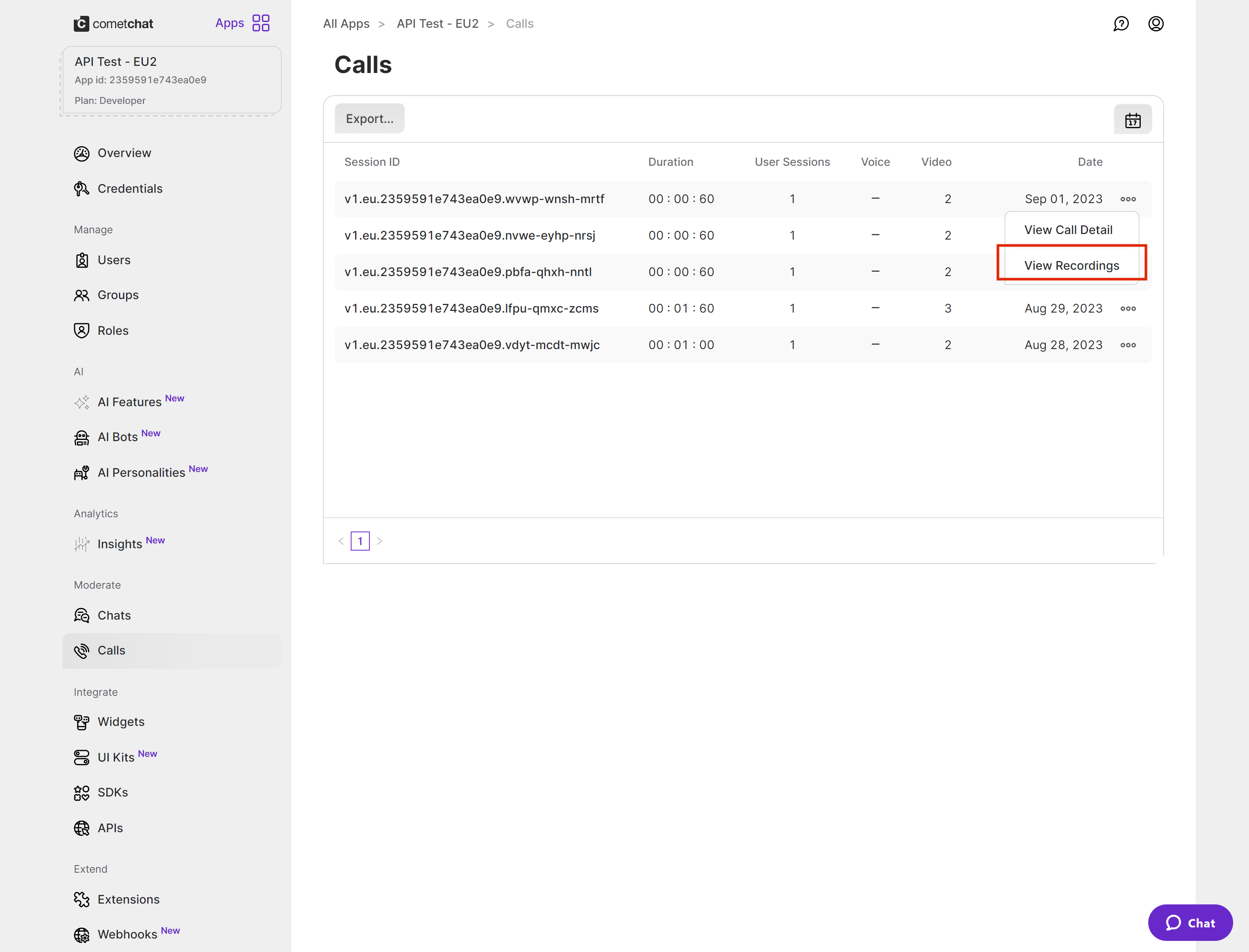
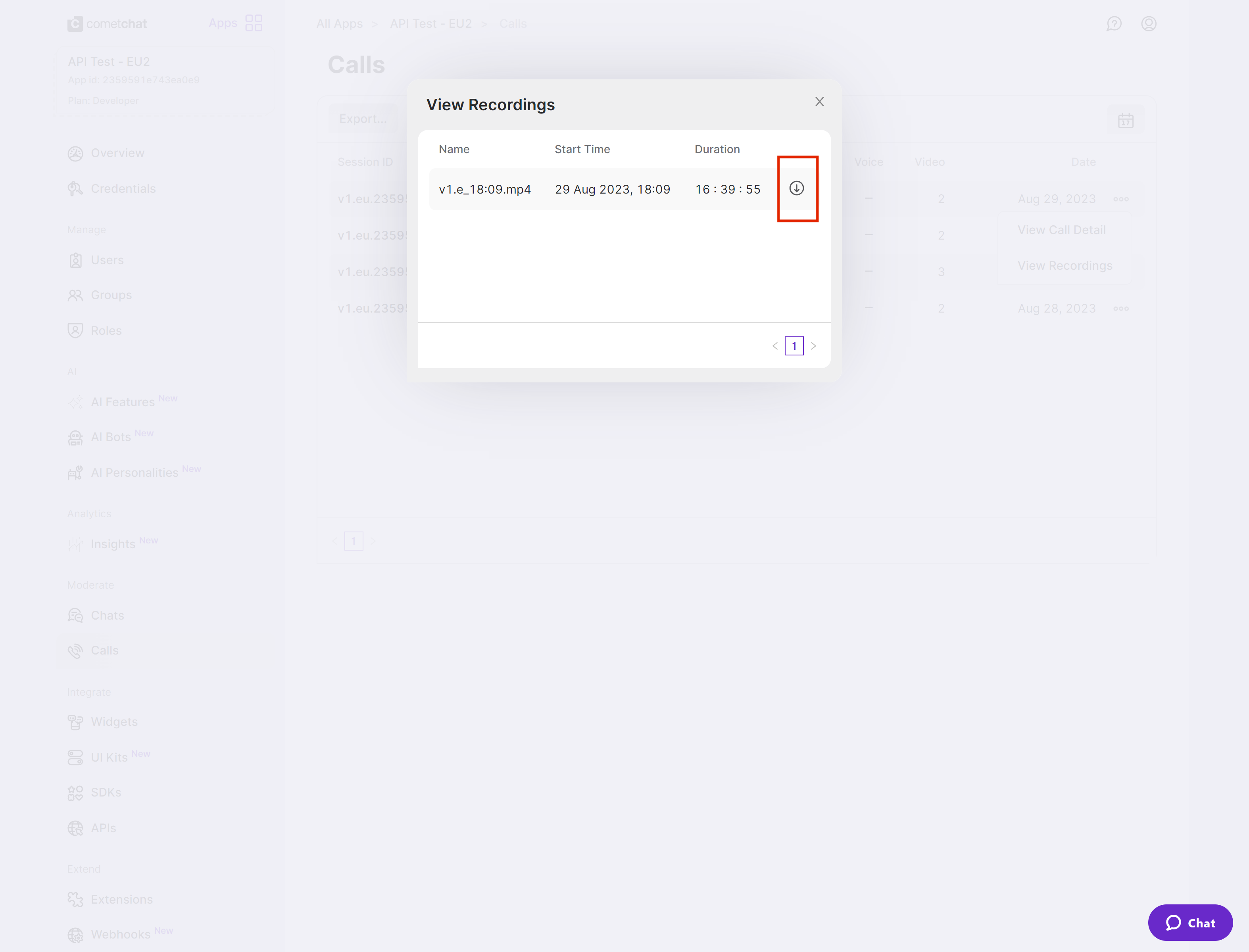
Currently, the call recordings are available on the CometChat Dashboard under the Calls Section. You can refer to the below screenshot.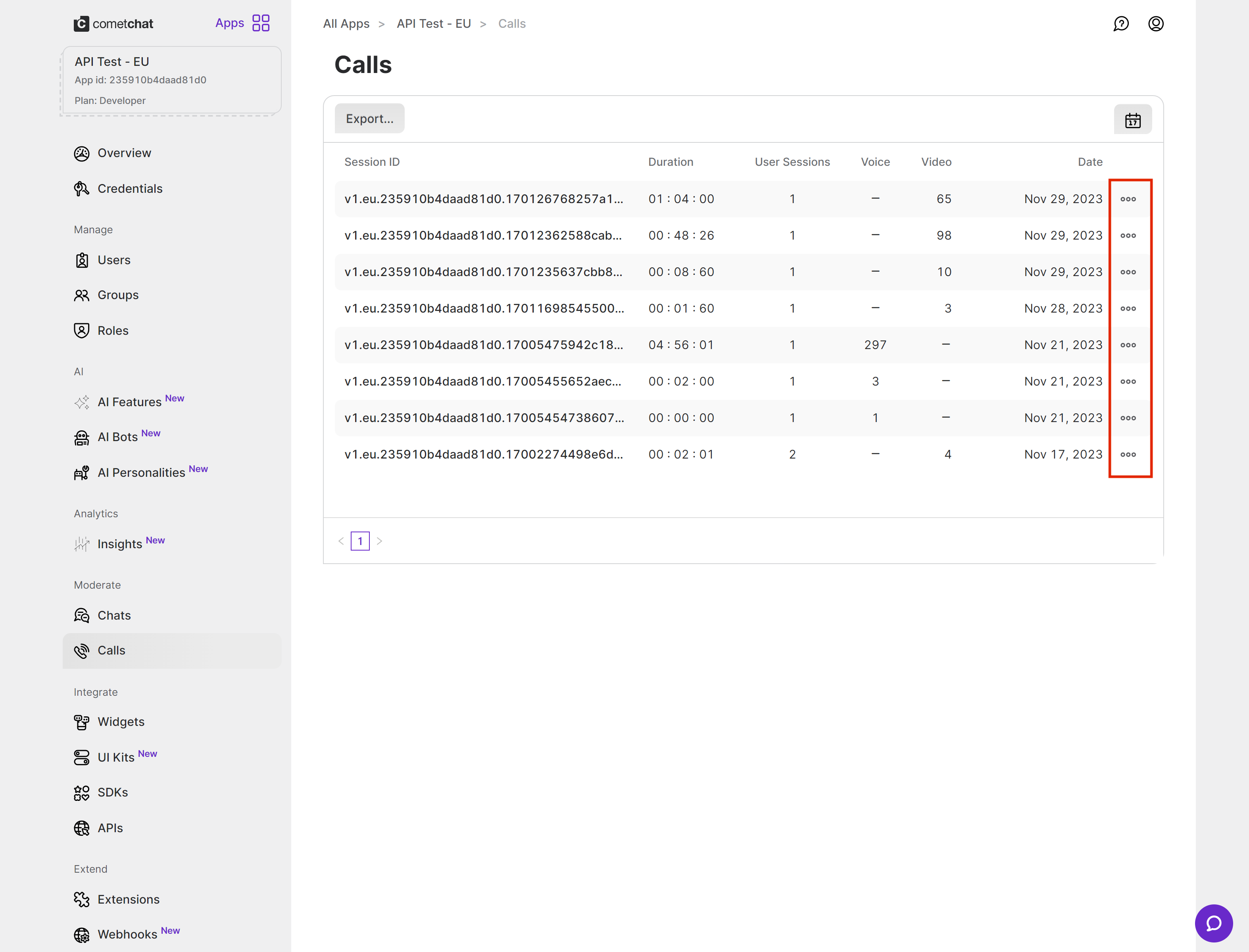
Best Practices
Recording indicator is built-in
Recording indicator is built-in
The ongoing call component automatically displays a recording badge when recording starts — you don’t need to build or control this UI. Use the
onRecordingStarted and onRecordingStopped listeners if you need to track recording state in your app logic (e.g., logging or analytics).Use auto-recording for compliance use cases
Use auto-recording for compliance use cases
If your app requires all calls to be recorded (e.g., for compliance or audit purposes), enable
startRecordingOnCallStart(true) in your CallSettingsBuilder to ensure no calls are missed.Handle recording state in custom UI
Handle recording state in custom UI
If you’re using a custom layout (
enableDefaultLayout(false)), track the recording state using onRecordingStarted and onRecordingStopped listeners to toggle your custom recording button’s appearance.Troubleshooting
Recording button not visible
Recording button not visible
onRecordingStarted / onRecordingStopped not firing
onRecordingStarted / onRecordingStopped not firing
These listeners require JS SDK v3.0.8 or later. Verify your SDK version. Also ensure the listeners are registered in the
OngoingCallListener before the call session starts.Recording not found on Dashboard
Recording not found on Dashboard
Recordings may take a few minutes to process after the call ends. Check the Calls section in the CometChat Dashboard. If still missing, verify that recording was actually started (check
onRecordingStarted callback).Next Steps
Call Session
Start and manage call sessions with full configuration options
Ringing
Implement a complete calling experience with incoming and outgoing call UI
Video View Customisation
Customize the main video container and participant tiles
Call Logs
Retrieve and display call history including duration and participants