

Quick Reference - Generate token and start a call session:
Overview
This section demonstrates how to start a call session in a React Native application. Previously known as Direct Calling.Available via: SDK | UI Kits
If you want to implement a complete calling experience with ringing functionality (incoming/outgoing call UI), follow the Ringing guide first. Once the call is accepted, return here to start the call session.
Generate Call Token
A call token is required for secure access to a call session. Each token is unique to a specific session and user combination, ensuring that only authorized users can join the call. You can generate the token just before starting the call, or generate and store it ahead of time based on your use case. Use thegenerateToken() method to create a call token:
- JavaScript
- TypeScript
| Parameter | Description |
|---|---|
sessionId | The unique random session ID. In case you are using the ringing flow, the session ID is available in the Call object. |
userAuthToken | The user auth token is the logged-in user auth token which you can get by calling CometChat Chat SDK method CometChat.getLoggedinUser().getAuthToken() |
Start Call Session
Use theCometChatCalls.Component to render the call UI. This component requires a call token (generated in the previous step) and a CallSettings object that configures the call UI and behavior.
The CallSettings class configures the call UI and behavior. Use CallSettingsBuilder to create a CallSettings instance.
- JavaScript
- TypeScript
| Parameter | Description |
|---|---|
callToken | The GenerateToken object received from generateToken() onSuccess |
callSettings | Object of CallSettings class configured via CallSettingsBuilder |
Call Settings
Configure the call experience using the followingCallSettingsBuilder methods:
| Method | Description |
|---|---|
enableDefaultLayout(boolean) | Enables or disables the default call UI layout with built-in controls. true shows the default layout with end call, mute, video toggle buttons. false hides the button layout. Default: true |
setIsAudioOnlyCall(boolean) | Sets whether the call is audio-only or audio-video. true for audio-only, false for audio-video. Default: false |
setCallEventListener(OngoingCallListener) | Sets the listener to receive call events. See Call Listeners for available callbacks. |
setMode(string) | Sets the call UI layout mode. Available: CometChat.CALL_MODE.DEFAULT (grid), CometChat.CALL_MODE.SPOTLIGHT (active speaker), CometChat.CALL_MODE.SINGLE (one participant). Default: DEFAULT |
setAvatarMode(string) | Sets how avatars are displayed when video is off. Available: circle, square, fullscreen. Default: circle |
setDefaultAudioMode(string) | Sets the initial audio output device. Available: SPEAKER, EARPIECE, BLUETOOTH, HEADPHONES |
startWithAudioMuted(boolean) | Starts the call with the microphone muted. Default: false |
startWithVideoMuted(boolean) | Starts the call with the camera turned off. Default: false |
showEndCallButton(boolean) | Shows or hides the end call button in the default layout. Default: true |
showSwitchCameraButton(boolean) | Shows or hides the switch camera button (front/back). Default: true |
showMuteAudioButton(boolean) | Shows or hides the mute audio button. Default: true |
showPauseVideoButton(boolean) | Shows or hides the pause video button. Default: true |
showAudioModeButton(boolean) | Shows or hides the audio mode selection button. Default: true |
showSwitchToVideoCallButton(boolean) | Shows or hides the button to upgrade an audio call to video. Default: true |
setMainVideoContainerSetting(MainVideoContainerSetting) | Customizes the main video container. See Video View Customization. |
enableVideoTileClick(boolean) | Enables or disables click interactions on video tiles in Spotlight mode. Default: true |
enableVideoTileDrag(boolean) | Enables or disables drag functionality for video tiles in Spotlight mode. Default: true |
setIdleTimeoutPeriod(number) | Sets idle timeout in seconds. Warning appears 60 seconds before auto-termination. Default: 180 seconds. v4.2.0+ |
Call Listeners
TheOngoingCallListener provides real-time callbacks for call session events, including participant changes, call state updates, and error conditions.
You can register listeners in two ways:
- Via CallSettingsBuilder: Use
.setCallEventListener(listener)when building call settings - Via addCallEventListener: Use
CometChatCalls.addCallEventListener(listenerId, listener)to add multiple listeners
listenerId string. This ID is used to:
- Prevent duplicate registrations — Re-registering with the same ID replaces the existing listener
- Enable targeted removal — Remove specific listeners without affecting others
- JavaScript
- TypeScript
Events
| Event | Description |
|---|---|
onCallEnded() | Invoked when the call session terminates for a 1:1 call. Both participants receive this callback. Only fires for calls with exactly 2 participants. |
onSessionTimeout() | Invoked when the call is auto-terminated due to inactivity (default: 180 seconds). Warning appears 60 seconds before. v4.2.0+ |
onCallEndButtonPressed() | Invoked when the local user taps the end call button. For ringing flow, call CometChat.endCall(). For standalone, call CometChatCalls.endSession(). |
onUserJoined(user) | Invoked when a remote participant joins. The user contains UID, name, and avatar. |
onUserLeft(user) | Invoked when a remote participant leaves the call session. |
onUserListUpdated(userList) | Invoked whenever the participant list changes (join or leave events). |
onAudioModesUpdated(audioModes) | Invoked when available audio devices change (e.g., Bluetooth connected). |
onCallSwitchedToVideo(event) | Invoked when an audio call is upgraded to a video call. |
onUserMuted(event) | Invoked when a participant’s mute state changes. |
onScreenShareStarted() | Invoked when the local user starts sharing a screen. |
onScreenShareStopped() | Invoked when the local user stops sharing a screen. |
onError(error) | Invoked when an error occurs during the call session. |
End Call Session
Ending a call session properly is essential to release media resources (camera, microphone, network connections) and update call state across all participants. The termination process differs based on whether you’re using the Ringing flow or Session Only flow.Ringing Flow
When using the Ringing flow, you must coordinate between the CometChat Chat SDK and the Calls SDK to properly terminate the call and notify all participants.The Ringing flow requires calling methods from both the Chat SDK (
CometChat.endCall()) and the Calls SDK (CometChatCalls.endSession()) to ensure proper call termination and participant notification.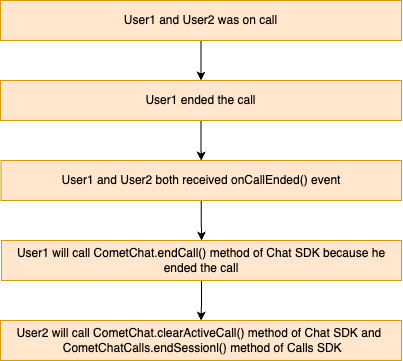
onCallEndButtonPressed() callback is triggered. You must call CometChat.endCall() inside this callback to properly terminate the call and notify other participants. On success, call CometChat.clearActiveCall() and CometChatCalls.endSession() to release resources.
- JavaScript
- TypeScript
onCallEnded() callback):
Call CometChat.clearActiveCall() to clear the local call state, then call CometChatCalls.endSession() to release media resources.
- JavaScript
- TypeScript
Session Only Flow
When using the Session Only flow (direct call without ringing), you only need to call the Calls SDK method to end the session. There’s no need to notify the Chat SDK since no call signaling was involved. CallCometChatCalls.endSession() in the onCallEndButtonPressed() callback to release all media resources and disconnect from the call session.
- JavaScript
- TypeScript
Methods
These methods are available for performing custom actions during an active call session. Use them to build custom UI controls or implement specific behaviors based on your use case.These methods can only be called when a call session is active.
Switch Camera
Toggles between the front and rear camera during a video call. Useful for allowing users to switch their camera view without leaving the call.- JavaScript
- TypeScript
Mute Audio
Controls the local audio stream transmission. When muted, other participants cannot hear the local user.true— Mutes the microphone, stops transmitting audiofalse— Unmutes the microphone, resumes audio transmission
- JavaScript
- TypeScript
Pause Video
Controls the local video stream transmission. When paused, other participants see a frozen frame or avatar instead of live video.true— Pauses the camera, stops transmitting videofalse— Resumes the camera, continues video transmission
- JavaScript
- TypeScript
Set Audio Mode
Routes the audio output to a specific device. Use this to let users choose between speaker, earpiece, or connected audio devices. Available modes:CometChat.AUDIO_MODE.SPEAKER— Device speaker (loudspeaker)CometChat.AUDIO_MODE.EARPIECE— Phone earpieceCometChat.AUDIO_MODE.BLUETOOTH— Connected Bluetooth deviceCometChat.AUDIO_MODE.HEADPHONES— Wired headphones
- JavaScript
- TypeScript
Switch To Video Call
Upgrades an ongoing audio call to a video call. This enables the camera and starts transmitting video to other participants. The remote participant receives theonCallSwitchedToVideo() callback.
- JavaScript
- TypeScript
Get Audio Output Modes
Returns the list of available audio output devices. Use this to display audio options to the user and then set the selected mode usingsetAudioMode().
- JavaScript
- TypeScript
End Call
Terminates the current call session and releases all media resources (camera, microphone, network connections). After calling this method, the call view should be closed.- JavaScript
- TypeScript
Best Practices
Generate call tokens just before use
Generate call tokens just before use
Call tokens are session-specific and time-limited. Generate them right before starting the call session rather than caching them for extended periods. This ensures the token is fresh and reduces the chance of token expiry errors.
Always handle call end in both flows
Always handle call end in both flows
When using the Ringing flow, remember to call both
CometChat.endCall() and CometChatCalls.endSession(). Missing either call can leave the session in an inconsistent state — the Chat SDK may still show the call as active, or media resources may not be released properly.Clean up listeners on component unmount
Clean up listeners on component unmount
Always remove call event listeners in your component’s cleanup function (e.g., the return function of
useEffect). Orphaned listeners can cause memory leaks, duplicate event handling, and unexpected behavior when navigating between screens.Wrap the call component in a full-screen container
Wrap the call component in a full-screen container
The
CometChatCalls.Component should be rendered inside a View with height: '100%', width: '100%', and position: 'relative'. This ensures the call UI fills the screen correctly and overlays render in the right position.Use unique listener IDs per component instance
Use unique listener IDs per component instance
When registering call event listeners with
addCallEventListener, use a unique listenerId per component instance. This prevents one component from accidentally overwriting another component’s listener, especially in navigation stacks where multiple screens may be mounted simultaneously.Troubleshooting
Call token generation fails
Call token generation fails
Ensure the user is logged in and the auth token is valid. Call
CometChat.getLoggedinUser() to verify the user session is active. If the auth token has expired, re-authenticate the user before generating a call token.Call UI does not render
Call UI does not render
Verify that the
CometChatCalls.Component is wrapped in a View with explicit dimensions (height: '100%', width: '100%'). The component requires a sized container to render. Also confirm that both callSettings and callToken props are provided and not null or undefined.Listeners not firing
Listeners not firing
Check that the listener is registered before the call session starts. If using
addCallEventListener, ensure the listenerId is unique and hasn’t been overwritten by another registration. Also verify that the Calls SDK has been initialized via CometChatCalls.init().onCallEnded not triggered in group calls
onCallEnded not triggered in group calls
The
onCallEnded callback only fires for 1:1 calls (exactly 2 participants). For group calls, use onUserLeft and onUserListUpdated to track when participants leave, and handle session cleanup based on your app’s logic.Audio or video not working after call starts
Audio or video not working after call starts
Check device permissions for camera and microphone. On React Native, you need to request
CAMERA and RECORD_AUDIO permissions on Android, and add NSCameraUsageDescription and NSMicrophoneUsageDescription to Info.plist on iOS. Also verify that setIsAudioOnlyCall matches your intended call type.