

Overview
This guide demonstrates how to intercept push notification content before rendering and clean up the notification body or title. The example below shows how to strip HTML tags from the notification body, but the same approach can be used to apply any regex-based transformation to the notification title or body before triggering the push notification.This solution is specific to React Native. On some Android devices, the OS handles HTML tag stripping by default. Consider this example as a reference for modifying any content in the notification body or title before display.
- The message payload
- SDK logic
- Chat UI rendering
Android Implementation
On Android, use FCM (@react-native-firebase/messaging) to receive push notifications and route all notification flows through a single handler (e.g., displayLocalNotification) for both messaging().onMessage() (foreground) and messaging().setBackgroundMessageHandler() (background/killed). This lets you clean the content before displaying it.
Add the Utility Function
Create or update your helper file with thestripHtmlTags function:
Display Notifications with Cleaned Content
How It Works on Android
| State | Flow |
|---|---|
| Foreground | App.tsx → messaging().onMessage() → displayLocalNotification() |
| Background/Killed | index.js → messaging().setBackgroundMessageHandler() → displayLocalNotification() |
displayLocalNotification(), HTML stripping happens automatically for all notification states.
iOS Implementation
On iOS, push notifications are delivered via APNs (Apple Push Notification service). To modify notification content before display, use a Notification Service Extension — a native iOS mechanism that intercepts APNs payloads before they are shown to the user. A Notification Service Extension intercepts push notifications before they are displayed, allowing you to modify the content.Create the Notification Service Extension
Add a new target in Xcode
In Xcode, go to File → New → Target → Notification Service Extension. Name it 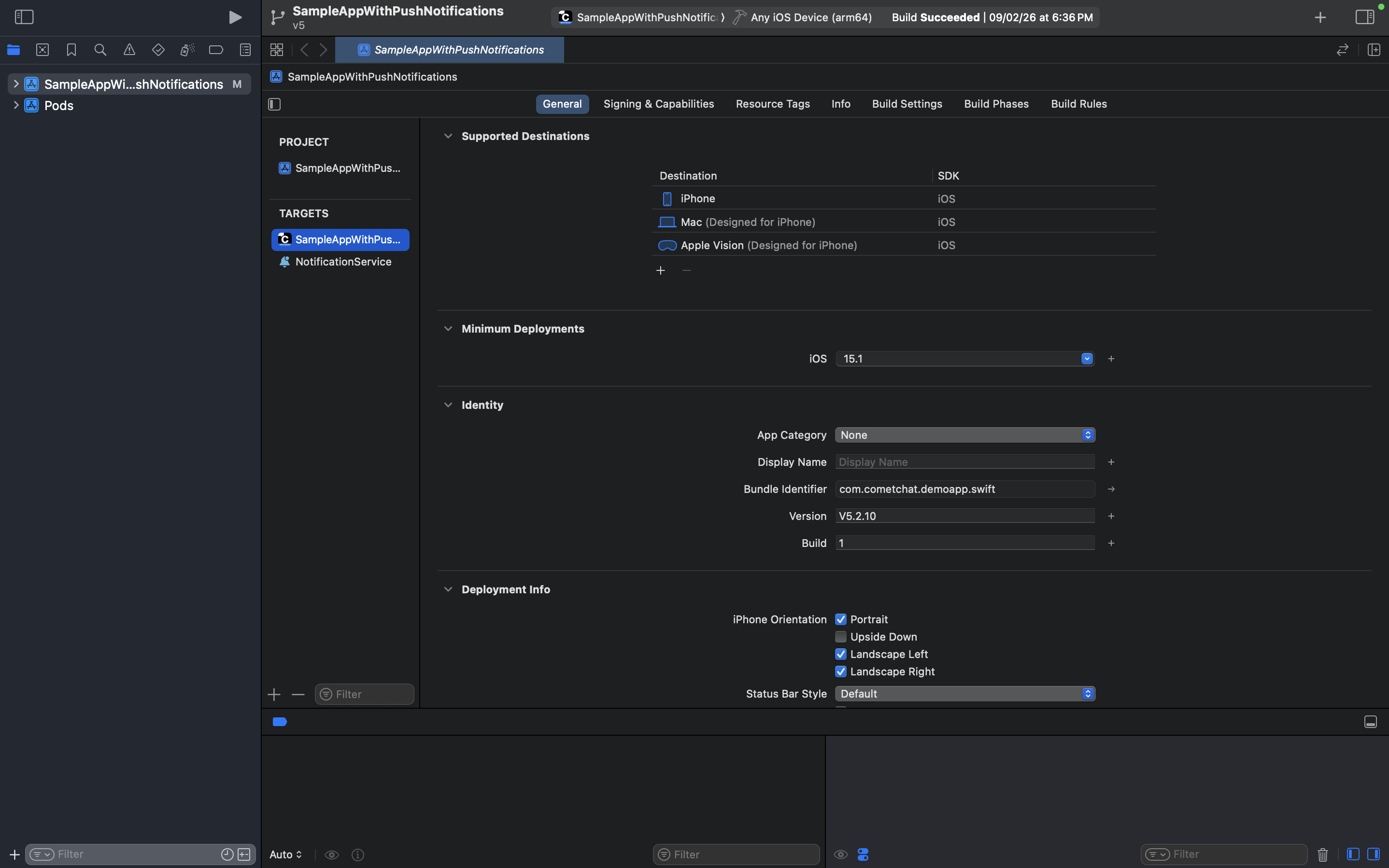
NotificationService and click Finish.Once added, you should see NotificationService listed under TARGETS in your project:Required iOS Configuration
| Setting | Details |
|---|---|
| Team & Signing | The extension target must have the same team and signing configuration as your main app target |
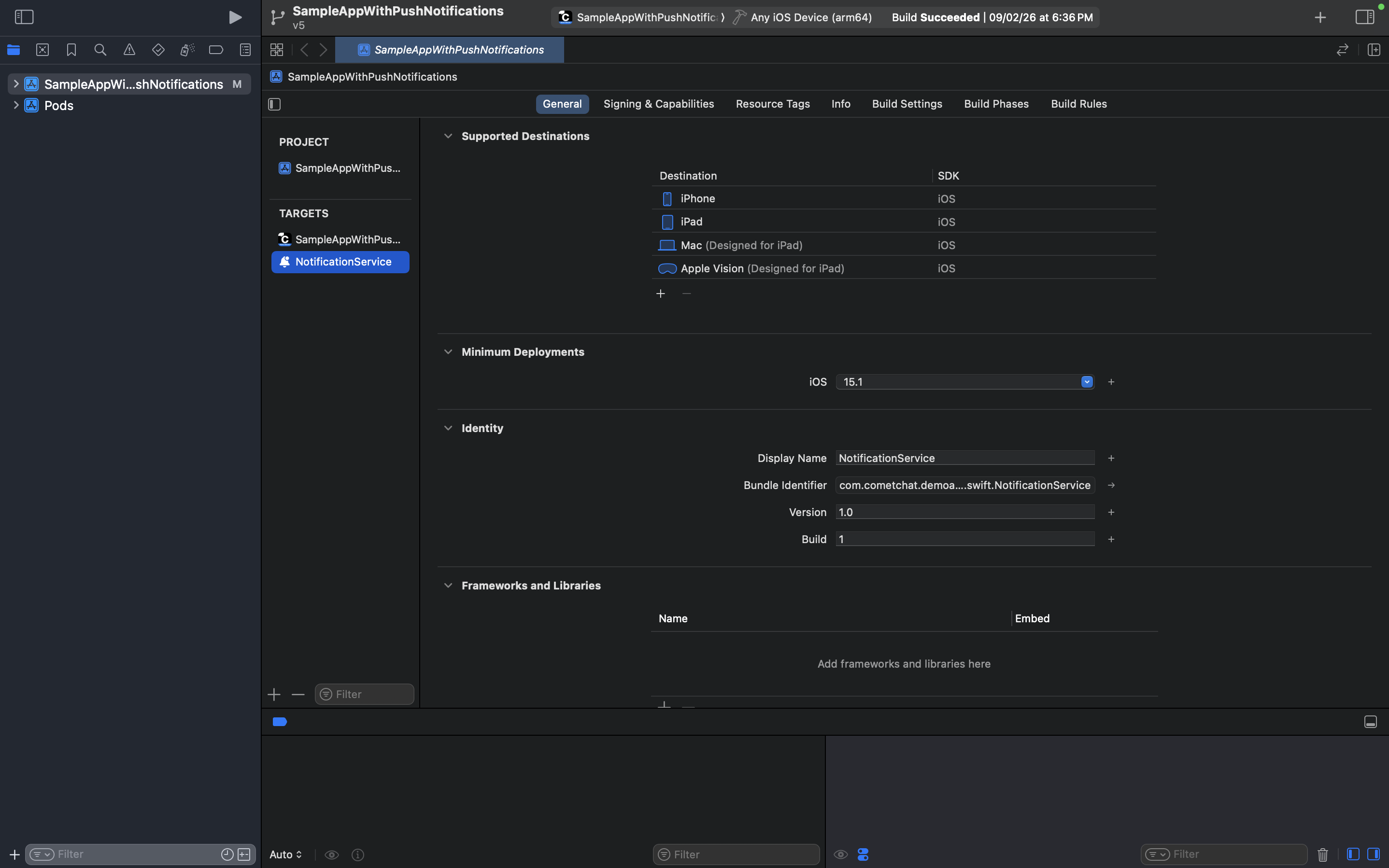
| Bundle Identifier | Must be a child of your main app’s bundle ID (e.g., com.yourapp.NotificationService) |
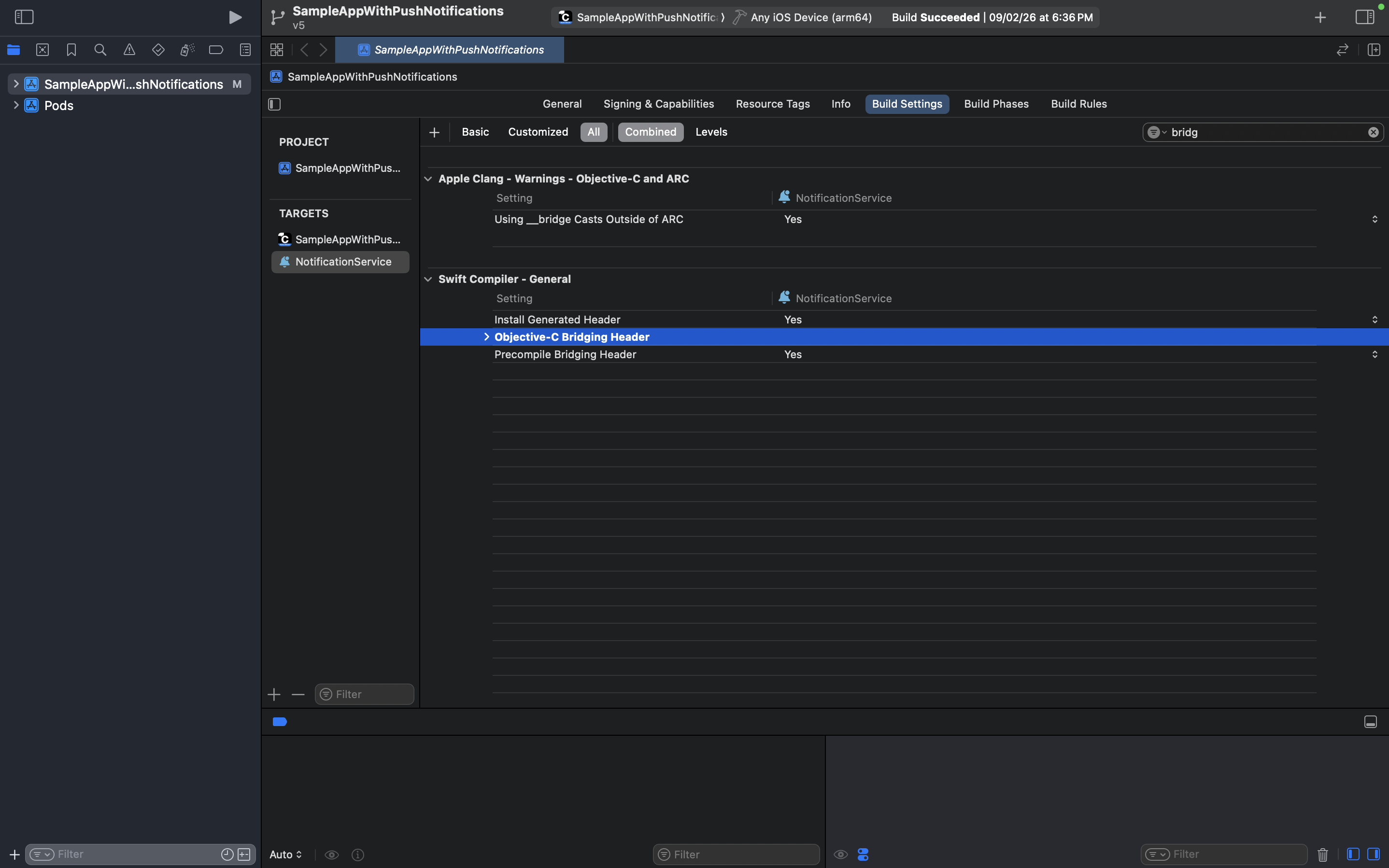
| Bridging Header | If you see a bridging header error, clear the Objective-C Bridging Header field in the extension’s Build Settings |
| Push Payload | Your APNs payload must include "mutable-content": 1 for the extension to intercept notifications |
| Deployment Target | The extension’s deployment target must match or be lower than your main app’s deployment target |
NotificationService target and verify the bundle identifier is a child of your main app’s bundle ID:
NotificationService target → Build Settings, search for “bridging”, and clear the Objective-C Bridging Header value:
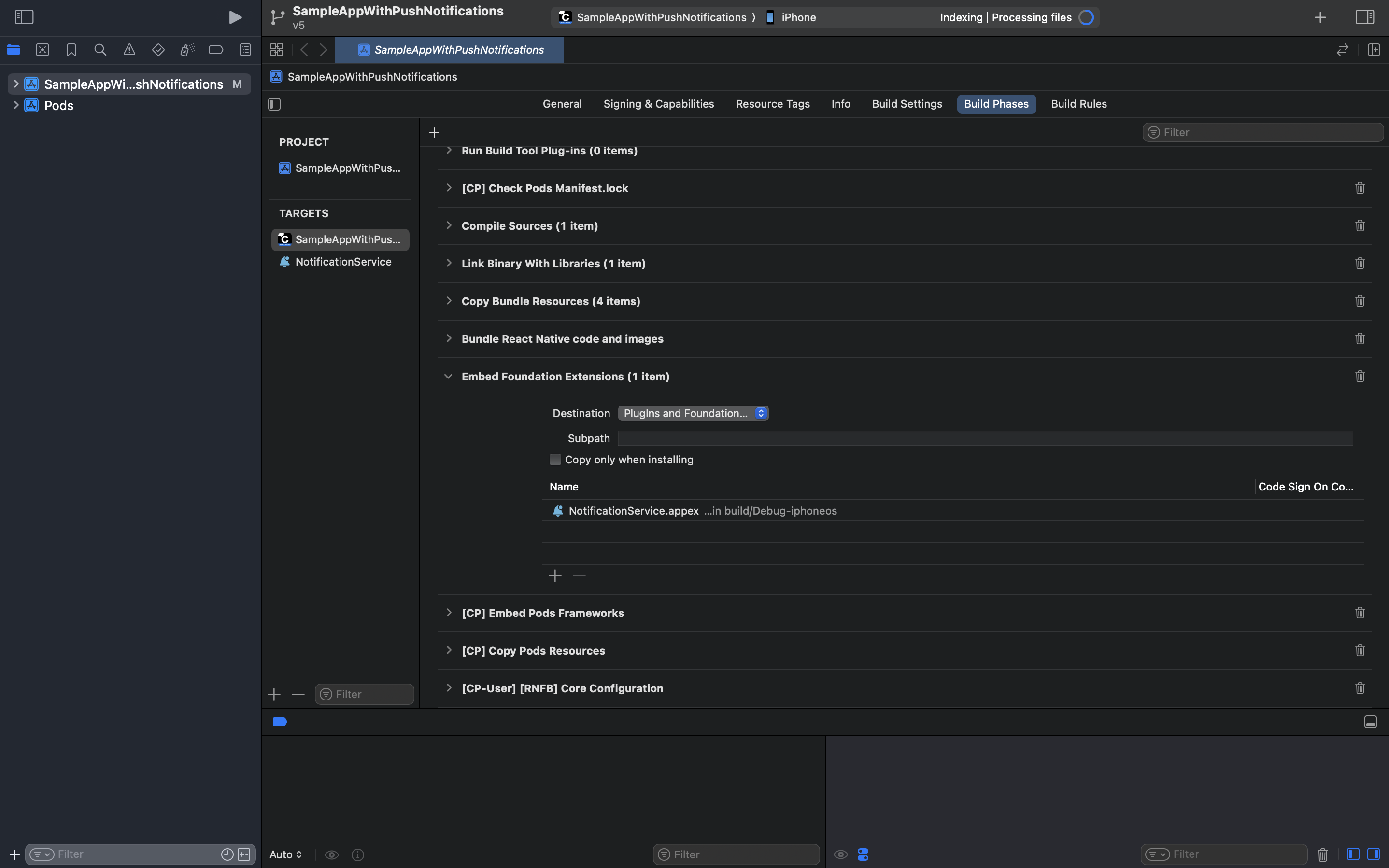
NotificationService.appex after a successful build under Embed Foundation Extensions:
If your project uses React Native Firebase (e.g., for FCM on Android), you may also see
[CP-User] [RNFB] Core Configuration in Build Phases. This is a CocoaPods build phase and does not affect the Notification Service Extension itself.Testing
Android (FCM)
- Send a message containing HTML tags (e.g.,
<b>Hello</b> <i>World</i>) from another user - Verify the push notification displays clean text (
Hello World) instead of raw HTML - Test across all app states:
- Foreground (
messaging().onMessage()→displayLocalNotification()) - Background/Killed (
messaging().setBackgroundMessageHandler()→displayLocalNotification())
- Foreground (
iOS (APNs)
- Test on a physical device — Notification Service Extensions do not run on the iOS Simulator
- Send a message containing HTML tags from another user
- Verify the push notification displays clean text in both background and killed states
- Confirm that the chat UI still renders the rich text with formatting intact in both platforms
Troubleshooting
Troubleshooting
- Bridging Header Error: If you get a build error related to the Objective-C Bridging Header in the NotificationService target, go to the extension’s Build Settings → Objective-C Bridging Header and clear the value.
- Build Cycle Error: If you see a build cycle error after adding the extension (common in projects using CocoaPods), go to your main app target’s Build Phases, find Embed Foundation Extensions, and ensure
NotificationService.appexis listed correctly. - Extension Not Working on Simulator: Notification Service Extensions do not run on the iOS Simulator. Test on a physical device.
- Extension Not Intercepting Notifications: Ensure your APNs payload includes
"mutable-content": 1. Without this flag, iOS will not route the notification through your extension. - Build Fails After Adding Extension: Verify the extension’s deployment target matches your main app. Also ensure the extension’s bundle ID is a child of the main app’s bundle ID (e.g.,
com.yourapp.NotificationService).
Best Practices
Best Practices
- Android: Route all FCM notification flows through a single handler function to ensure consistent content transformation
- iOS: The Notification Service Extension handles all APNs notifications automatically — no additional routing needed
- Keep the
stripHtmlTagsfunction in a shared utility file so it can be reused across your app - Handle
serviceExtensionTimeWillExpire()gracefully on iOS — deliver the best available content if processing takes too long - Test on physical iOS devices since Notification Service Extensions do not run on the simulator
- Consider logging stripped content during development to verify the regex handles all edge cases in your notification payloads